
Have you ever taken a great photo and find it too small or blurry when you try to use it? Don’t worry! With the right online tools, you can easily make your images bigger and keep them looking sharp and clear. Whether you’re a photographer wanting to show off your work, a designer creating eye-catching graphics, or a content creator looking to impress your audience, having high-quality images is key.
In this guide, we’ll introduce you to some of the best online tools for enlarging images, starting with Imglarger. This powerful tool helps you make your photos larger without losing any important details. We’ll walk you through how to use it step by step, and also share some other great options you might want to try.
Part 1: Best Online Tool for Image Enlarger Without Losing Quality
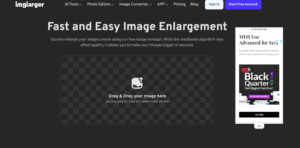
Imglarger is a powerful AI tool that quickly enhances and enlarges images while maintaining professional quality. It uses smart algorithms to increase image resolution up to 8k without making them pixelated or losing detail.
Accessible online, users can easily convert, enlarge, and edit images in different formats. This makes it a great choice for photographers, designers, and content creators who want to simplify their image editing process.
Plus, with Imglarger’s data-safe guarantee, all files are automatically deleted after 24 hours, ensuring convenience and security.
Key Features
- Automatic and Fast Processing
- Top-Quality Upscaling
- Batch Processing
- Built-In Photo Editor
Steps to Enlarge an Image Using Imglarger
Step 1: Go to the Imglarger Website and Select “AI Image Enlarger”
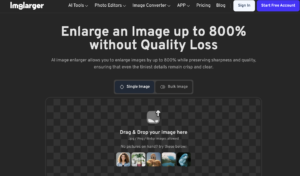
Visit the Imglarger website and click on the “AI Image Enlarger“ option to begin under the AI Tools menu. This feature leverages AI technology to upscale your images without compromising quality.
Step 2: Upload Your Image
Drag and drop the image you want to enlarge into the upload area. Imglarger supports JPG, PNG, and WebP formats, so ensure your file is compatible for smooth processing.
Step 3: Choose Your Enlargement Ratio
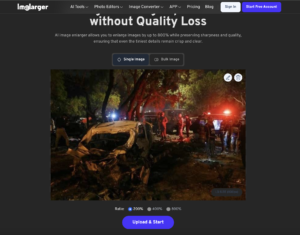
Select the enlargement ratio that best suits your needs, with options including 200%, 400%, or 800%. Once you’ve chosen the desired ratio, click “Upload & Start” to begin the enhancement.
Step 4: Download or Edit the Image
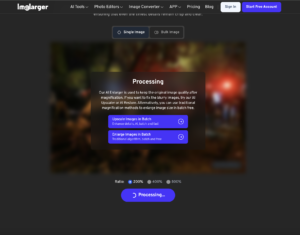
Once processing is complete, you can compare the image with the uploaded one and make additional edits by clicking the “Edit” icon to adjust brightness, contrast, and other settings. When satisfied, click “Download” to save the enlarged image to your device.
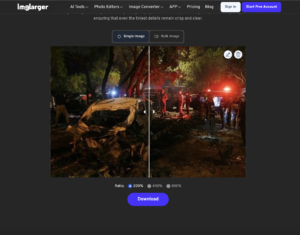
With these steps, Imglarger makes it easy to enhance your images, achieving high-quality results quickly and efficiently.
Part 2: Alternative Tools for Image Enlargement
While Imglarger is a top choice for image enlargement, several other tools can also provide impressive results. If you’re looking for a feature-rich option, Imglarger stands out, but consider these alternatives:
1. Media.io
Media.io is a web-based platform that offers a variety of multimedia editing features, including image upscaling. This tool effectively addresses the issue of pixelation when enlarging images and is perfect for users who prefer a straightforward online solution.
Pros
- No need for software installation
- User-friendly interface
- Supports various image formats
- Free trial available
Cons
- Limited free usage
- Some features may require account creation
- Requires an internet connection
2. PicWish
PicWish is an AI-driven image editing tool that specializes in enhancing and optimizing images. It excels at transforming low-resolution images into high-quality enlarged versions, making it ideal for users focused on maintaining image details.
Pros
- Uses advanced AI algorithms for quality retention
- Supports batch processing
- Simple and intuitive interface
Cons
- Limited free trials available
- Subscription required for full access
- Some features might be challenging to master
3. Remini
Remini is a mobile application that focuses on AI-enhanced photo improvements, including image enlargement. Its AI technology is particularly effective for enhancing photo quality.
Pros
- Specializes in improving faces and portraits
- User-friendly for mobile devices
- Quick processing speed
Cons
- Limited to mobile platforms
- Primarily focuses on facial features
- May require in-app purchases for full access
4. Fotor
Fotor is a versatile photo editing and design platform that includes an image enlargement feature. It utilizes AI algorithms to resize images while preserving details, making it suitable for users who require a comprehensive editing tool.
Pros
- Offers a broad range of additional editing tools
- Available as both a web and desktop application
- Supports multiple image formats
Cons
- The free version has limitations
- Premium features require a subscription
- May have a steep learning curve for newcomers
Conclusion
Enhancing and enlarging your images has never been easier, thanks to tools like Imglarger and its reliable alternatives. With just a few clicks, you can transform ordinary images into stunning visuals that capture attention and elevate your content.
Embrace these tools to ensure your photos look their best and make a lasting impact. Happy enhancing!