
SSD Drive Cloning Software: What You Need to Know
“Hey folks, I’m looking for some good SSD drive cloning software recommendations. I need to clone my old SSD to a new one on my Dell Inspiron 15 running Windows 10. Any suggestions for reliable software that makes the process easy and hassle-free? Thanks in advance!”
SSD drive cloning software lets you make an exact copy of your HDD or SSD to another drive. This means not just your files, but also your operating system, partition layout, drive letter, custom settings, installed programs, and personal data. Everything on the original disk gets transferred to the new one, so you can boot up from the cloned drive just like before.
Looking for free disk clone software to move data from one SSD to another? You’re in the right place. In this article, we’ll cover the best free cloning software to help you easily create a disk-to-disk clone.
Is There Free SSD Migration Software?
Absolutely! If you’re looking for a quick and free way to clone your SSD, check out AOMEI Backupper. It’s a fast and reliable SSD cloning software that you can use for free. Here’s everything you need to know about it.
AOMEI Backupper is top-notch SSD cloning software designed for Windows 11, 10, 8.1, 8, 7, Vista, and XP. It’s packed with professional features that make transferring data from one disk to another a breeze.
- Disk Clone: Clone your entire hard drive, including all volumes. Easily migrate HDDs to smaller SSDs or clone SSDs to larger ones.
- Partition Clone: Copy a specific partition, like an NTFS drive, without hassle.
- Intelligent Clone: By default, it only copies used sectors, making it easy to clone a larger drive to a smaller one.
- SSD Alignment: Boost the performance and extend the lifespan of your new SSD.
- VSS Technology: The cloning process runs in the background, so you can keep using your computer without interruption.
| Pros | Cons |
| √ Clone the entire disk or just a specific partition √ Only clone used sectors to save disk space √ 4K partition alignment for better SSD performance √ Supports all major SSD brands (Samsung, WD, Crucial, Seagate, etc.)
| × System disk cloning requires payment for the system migration feature
|
Clone HDD to SSD for Free with AOMEI Backupper
So after understanding the advantages and disadvantages of this software, let’s take a look at how to use this SSD drive cloning software to clone your SSD. It only takes four easy steps. Let’s take a look together! Ready to clone your HDD to an SSD? Here’s a simple step-by-step guide using AOMEI Backupper.
- Prepare for HDD to SSD Cloning
- Connect Your New SSD: Ensure your new SSD is properly connected. If your computer has only one drive bay, use a USB-to-SATA adapter.
- Backup Important Files: The target disk will be overwritten, so back up any important files.
- Install AOMEI Backupper: Download and install this free SSD migration software.
- Detailed Cloning Steps
Step 1: Find the Disk Clone Option: Open AOMEI Backupper, click on the Clone button, and select Disk Clone.
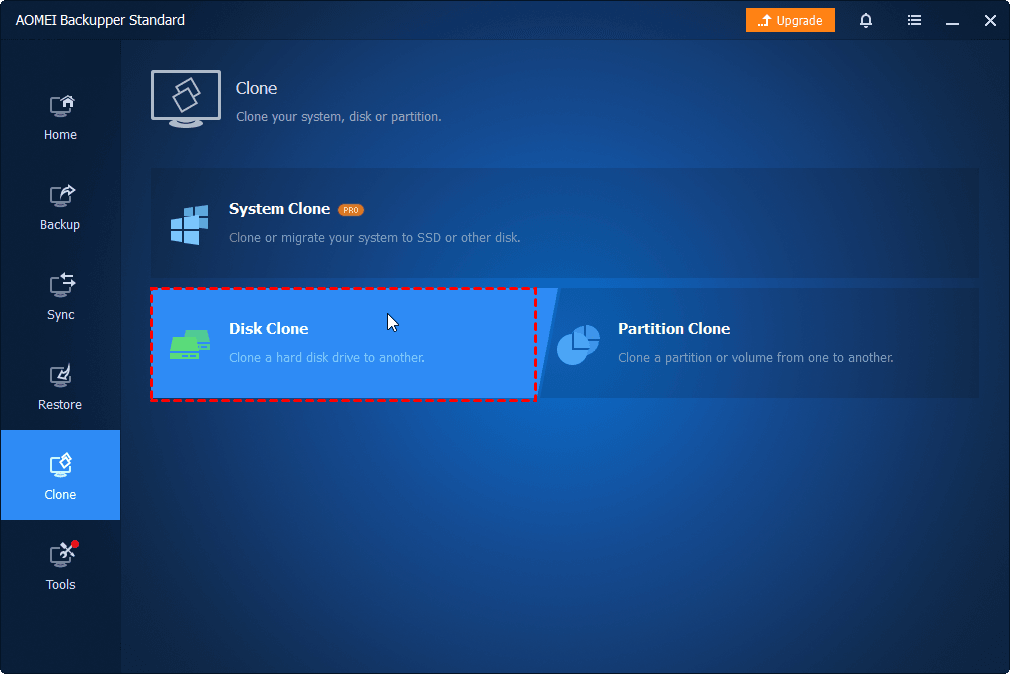
☛ Note: The free edition only supports cloning non-system disks. To clone a system disk, upgrade to a higher edition.
Step 2: Choose Your HDD and SSD: Select the original hard drive as the source disk, then choose the SSD as the destination disk.
Step 3: Optimize SSD Performance and Start Cloning: Check the SSD Alignment option to optimize the SSD’s performance. Click Start Clone to begin the cloning process.
☛ Tip:
- Sector By Sector Clone: If you want to clone every sector (including unused ones), tick this option.
- Edit Partitions: If you’re upgrading to a larger SSD, use the “Add unused space to all partitions” option to avoid unallocated space after cloning.
Step 4: Let the Cloning Process Complete: Let the process run. You can continue using your PC as normal. Once completed, click Finish.
Your Turn
If you need a versatile data migration tool that supports all SSD brands, try AOMEI Backupper Standard. It not only helps you transfer data (e.g., clone NVMe to NVMe SSD) but also offers backup features for files and systems. Its robust restoration features allow you to recover an unbootable PC using rescue media or the AOMEI PXE boot tool.