
Are you changing Google Drive accounts but don’t know how to move all your files to the new account? Do you still move files by downloading them from the old account and then uploading them to the new one? Forget the traditional way and embrace the advanced one in this post! With MultCloud, you can create a direct transfer task and all your files can be moved to the new account at once.
Why Use MultCloud to Move Files from One Google Drive to Another?
What is MultCloud? It is a professional multiple-cloud management service, founded in 2012. As a cloud manager, it supports 30+ common-used clouds, including Google Drive, Google Photos, Google Workspace, Dropbox, OneDrive, SharePoint Online, Amazon S3, Icedrive, iDrive, 4Shared, and so on. You can add as many cloud accounts as you want to MultCloud for centralization
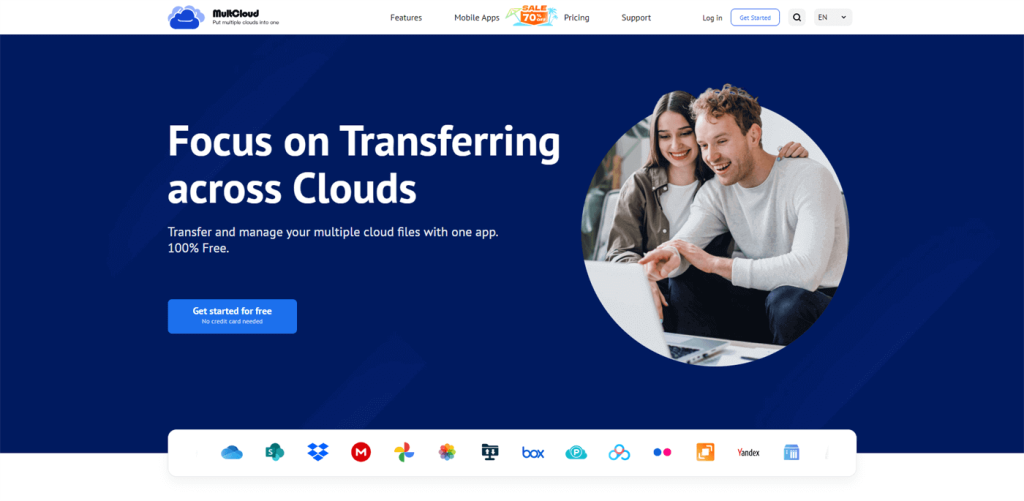
MultCloud offers multiple functions to manage cloud files. To move files from one Google Drive to another, the Cloud Transfer function is the most suitable one. Cloud Transfer is specifically designed for direct cloud-to-cloud transfer. That means you don’t have to download and upload for file transfer but transfer with one click.
There are some prominent features of Cloud Transfer:
- Multiple Source Clouds: You can choose multiple cloud drives as the transfer sources. All the files can be moved to the destination in one task.
- Customizable Transfer Options: There are several options that you can choose to satisfy your transfer requirements. For example, you can make the task delete the transferred files in the source after the task is completed.
- Offline Transfer: MultCloud supports offline transfer so that you can shut down the task window and do other things after creating a task. The transfer will proceed continuously.
- Schedule the Task: If you plan to move files from one Google Drive to another regularly, you can set your preferred frequency in “Schedule”. By doing so, you don’t have to manually start the task. It will automatically start transferring when the appointed time arrives.
- Select Files with Extensions: If you only want to move parts of files to another account like only documents. You can enter “.doc” in “Filter” and the task will only move files with “.doc” to the destination.
How to Move Files from One Google Drive to Another via MultCloud
Now, you know what MultCloud and Cloud Transfer are. In this part, you can see the steps for using Cloud Transfer to move files from one google drive to another.
Step 1. Open the MultCloud website and create a free account.
Step 2. Click “Add Cloud” and the Google Drive icon, and log in to the Google Drive account to add it to MultCloud. Also, add another account with the same step.
Step 3. Select “Cloud Transfer” in the left sidebar and choose the old account as the source and the new account as the destination.
Step 4: Open “Options” to check the transfer settings and tap “Transfer Now” to initiate the task.
- Transfer: Cloud Transfer task settings.
- Email: Inform you that your transfer task is done with an email.
- Filter: Select files with extensions.
More About MultCloud
Except for Cloud Transfer, MultCloud has more functions that may do you a favor:
⭐Cloud Sync: Real-time update files from one cloud to another, syncing every change.
⭐Team Transfer: Auto-match all the sub-accounts and transfer files one to one.
⭐Cloud Backup: Backup and restore cloud files with file version recording.
⭐Email Migration: Save emails to the cloud as PDF files with attachments.
⭐Shares: Share cloud files with others in Public, Private, or Source Share mode.
⭐Remote Upload: Upload files to the cloud as links, magnets, and torrents.
⭐Save Webpage as PDFs: Convert a webpage as a PDF/PNG file and save it to the cloud.
Conclusion
To move files from one Google Drive to another, don’t hesitate to try MultCloud Cloud Transfer. It can automate the transfer task and files can be directly moved from the source to your selected destination. Or, if you have the sync or backup need, you can also try Cloud Sync and Cloud Backup. They will not let you down!