
Why clone SSD to larger SSD in Windows?
SSD, short for solid-state drive, is frequently considered as the hard drive of the computer. It provides better read/write speeds, durability, and energy efficiency than conventional HDD. As a result, many people are choosing to switch from HDD to SSD.
However, as time goes by, people find their PCs still get slow even when using SSD disks. To make PCs run faster, a number of Windows users are eager to clone SSD to larger SSD. Besides, some other possible reasons are collected as follows:
Data transfer: By using cloning, you may easily move all of your data from your old, smaller SSD to the new, bigger SSD without having to copy files by hand or reinstall programs. Especially if you have a lot of data or customized settings, this saves time and effort.
Preserving system settings: All installed apps, configurations, and system settings are retained when you clone the SSD. This guarantees that your new SSD functions precisely like the old one, preserving familiarity and without the need for a complete system reconfiguration.
Performance improvement: If your previous SSD was running low on storage capacity, switching to a larger SSD may help your system operate better. The new SSD’s larger capacity can prevent slowdowns caused by fragmentation and storage limitations.
All things considered, Windows’ ability to clone an SSD to a larger SSD provides a practical means of increasing storage capacity without losing data and keep the system intact.
Get SSD to SSD clone software for Windows 11/10/8/7
The secret to successful disk cloning is using an expert SSD cloning tool. It can assist you with cloning SSD to large SSD quickly and easily. Here, we suggest AOMEI Partition Assistant, a popular all-in-one SSD cloning program for Windows 11/10/8/7.
The main propose of this software is to make SSD cloning easier, faster, and safer. Here we list some remarkable advantages of AOMEI Partition Assistant in disk cloning:
Outstanding cloning features: Its “hot clone” function, which enables SSD cloning without requiring a Windows OS reboot, is its most notable feature. This greatly erases worries during the cloning process.
Flexible cloning methods: With this tool, you can transfer only OS, clone the whole hard drive, or copy partition to another drive. Besides, you are allowed to clone only used space to a smaller drive or clone the entire disk from sector to sector.
Broad compatibility: AOMEI Partition Assistant supports a range of SDD brands like Samsung SanDisk, Seagate, etc. Moreover, it not only works on physical computer but also is available for virtual machines.
Multiple options: During the cloning procedure, you are given several choices to organize and optimize your hard drive including adjusting the partition size and aligning the SSD to 4K.
How to clone SSD to larger SSD without losing data
In this part, you can learn how to clone SSD to larger SSD Windows 10 or 11 using AOMEI Partition Assistant step by step. Here is the full guide:
Step 1. Download and open AOMEI Partition Assistant, click “Clone” and select “Clone Disk” in the main interface.
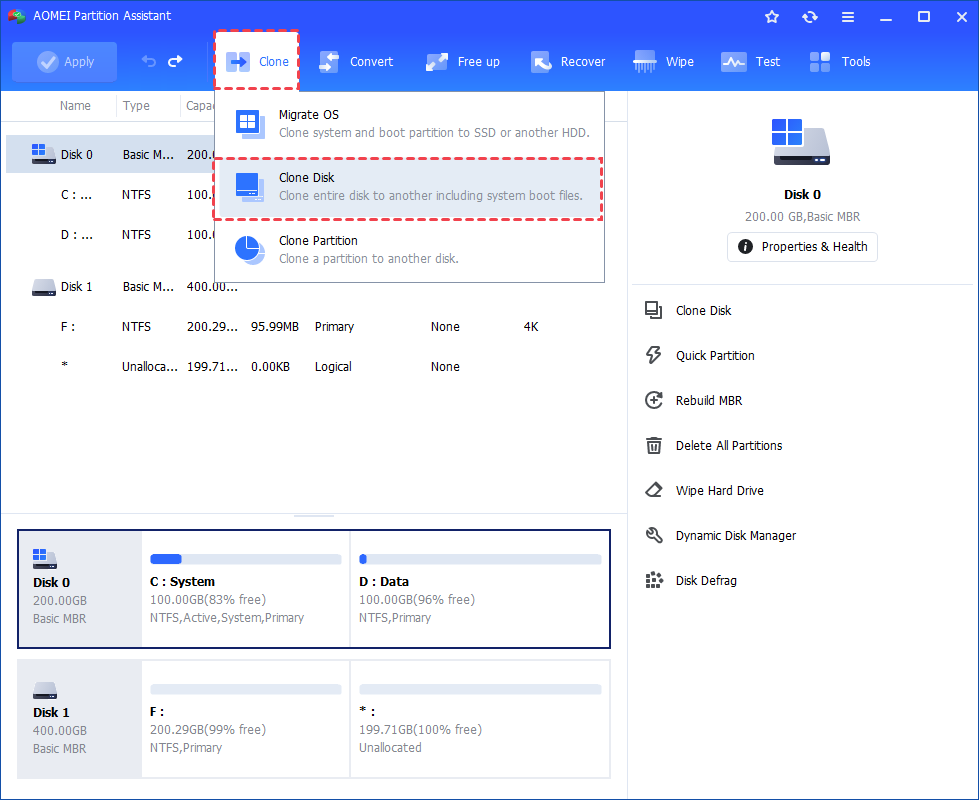 Step 2. Choose the solid-state disk that you need to clone as the source disk and then click “Next”.
Step 3. Select the new SSD hard drive as the destination disk, and then click “Next”.
Step 4. Then, you can check the source and destination disk in the next window or change to “Sector to Sector clone” cloning method, and click the “Confirm” button to continue if everything is set good.
Here, you can also click the “Settings” button to adjust the partition size on the destination disk or tick “4k alignment” to improve the reading and writing speed of SSD.
Step 5. At last, click “Apply” and “Proceed” in the main interface to start cloning the hard drive.
Conclusion
With AOMEI Partition Assistant, you can easily clone SSD to larger SSD on Windows 11/10/8/7 without reinstalling OS or rebooting Windows. This is a reputable and powerful disk manager, which can help you manage your partitions better. Since 2010, it has been advancing global data security, serving a diverse community of more than 60 million users worldwide. Feel free to install it on your computer.