
There’s no doubt that Fortnite has become a worldwide phenomenon, where people of all age groups, especially children, love participating in the popular battle royales.
Due to its popularity, Fortnite has accumulated over 500 million players as of March 2023. However, these numbers are also concerning, as your kids can interact with anyone around the globe, exposing your kids to the atrocities of the gaming world, like predation, cyberbullying, online harassment, etc.
Luckily, Epic Games has introduced some built-in parental controls that can make your child’s gaming experience safer and more enjoyable. So, if you are interested, scroll through this blog and get going!
| Note: Fortnite Battle Royale is rated 12+ by PEGI because it contains elements of violence. Regardless of that, many kids under this age play the game. Considering that, Epic Games has introduced in-game parental controls to ensure children’s safety. |
How to Set Fortnite Parental Controls? Step-by-Step Process
Although there are no specific parental control settings on Fortnite, you can tweak the settings here and there to make the game a safer place for your child. Here I’ve listed how you can access and change the settings. So, let’s take a look!
1. Set a PIN
Firstly, the most important thing you need to do is create a PIN. This 6-digit Parental Controls PIN works as a security key that prevents the settings from being changed again. Here’s how to set it:
- Launch the Fortnite game and navigate to the main screen. Now, click on the profile icon in the top-right corner.
- Then click on Settings icon >> Parental Controls.
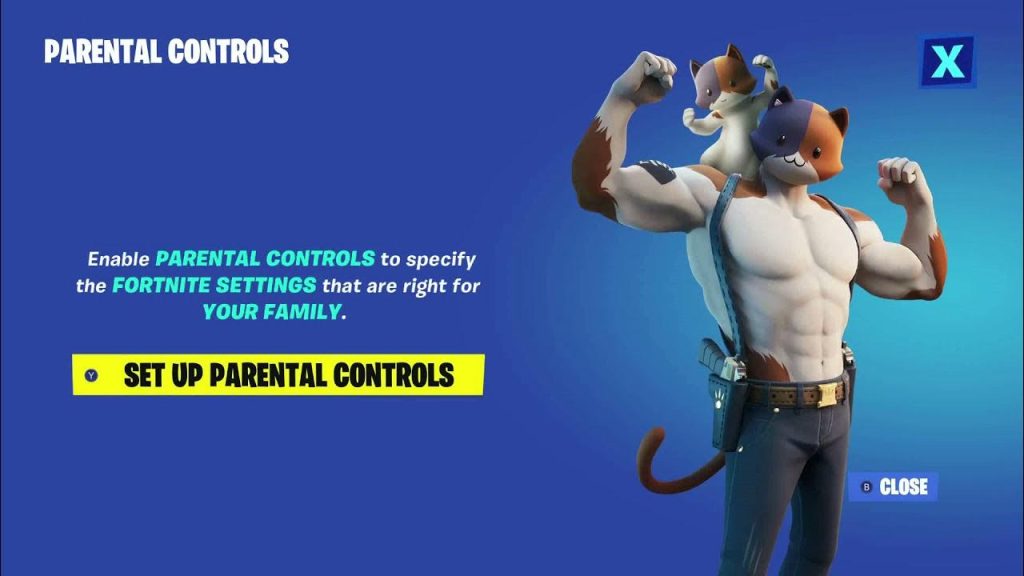
- Now, click on Set Up Parental Controls.

- Now, select the player’s name from the list appearing on the screen.
- Mention the additional info, and then click Continue to proceed.
- Now, choose if you want to block the person or not. Regardless of your decision, click Accept.
- Now, enter the 6-digit PIN and click on Next to confirm. This PIN will be the same if you are looking to set up the parental controls for Epic Games.Now, check if the used email account is correct. If not, click on the Change Email button on the screen. Then, click on Next.
- Now, the next time you want to access the parental controls, you will have to enter this 6-digit PIN.
2. Filter Mature Language
After creating a PIN and accessing the Parental Controls page, you will see various settings. The first setting on this page is Filter Mature Language, which turns every mature word your kids receive into a heart symbol. To turn on this setting, click on the arrow beside that, click on Save, and you are done.
3. Manage Friend Requests
The next setting on the parental controls page is Require PIN to Add Epic Friends. Turn on this setting, so your kid requires the PIN every time they wish to add a friend to the game.
Turn it on and click Save at the bottom.
4. Disable Voice Chat
If you wish to stop the unhealthy conversation between your child and the other players, click on Voice Chat and then select Nobody from the menu. Next, click Save to disable the voice chats.
5. Get Weekly Playtime Reports
Weekly Playtime Reports allow you to keep tabs on how much time your child is spending on Fortnite gaming. To enable that, navigate to the Weekly Playtime Reports option and turn it on to receive reports on the associated email ID.
Don’t forget to save the changes here as well.
Note: If your motive is to just monitor the time your child spends on Fortnite, you can head to Settings and take a look at Player’s stats. 6. Disable Text Chat
The last setting on the parental controls is the text chat that allows players to text with each other during Fortnite web battles. For that, turn off the Text Chat settings, then click Save to prevent further changes.
7. Report a User
Due to the unpredictable nature of Fortnite, it’s pretty common to come across annoying players once in a while. To deal with those situations, you must teach your child how to report a user. For that:
- Go to Settings >> Reporting >> Report a Bug, Player, or Island.
- Now, click on Report a Player.
- Then, state the reasons to report from the list of options.
- Now, select the player’s name from the list appearing on the screen.
- Mention the additional info, and then click Continue to proceed.
- Now, choose if you want to block the person or not. Regardless of your decision, click Accept.
- Now, your report will be submitted. Just wait until the Epic Games take action.
8. Limit In-App Purchasing
If you have saved your debit or credit card information on the game, your kid might be able to make in-app purchases without parental guidance. Thus, what you need to do is put a limit on purchases. For that, head to Settings >> General >> Player’s Stats.
Now, you will be able to see how much money is spent on the purchases and set limits based on those purchases.
Note: You can use the same steps as listed above for the PlayStation, Xbox, and Mac. Potential Risks Associated With Playing Fortnite
Similar to other games on the internet, Fortnite comes with its own risks and, thus, has various parental control settings in place to protect users. Here, I’ve listed some of the common risks:
- Game Addiction: Fortnite can be very addictive for children, and they can easily get absorbed while playing. This can lead to lower academic performance, distraction from learning, and various risky behaviors in children.
- Online Predators: Gaming has always been a widely attended event, which increases the risk of encountering online predators and becoming the target of cyberbullying.
- Offensive Language: In past gaming events, I’ve experienced firsthand the popularized use of offensive language and slurs, which might stain your child’s mindset.
Conclusion
Hence, I only recommend Fortnite to kids 13 or older because of the frequent scenes of action violence. But, with the right controls and settings in place, as I’ve mentioned earlier, this game can be a perfect preteen-friendly game.
Source Links: https://radarro.com/